> For the complete documentation index, see [llms.txt](https://help.vectary.com/llms.txt). Markdown versions of documentation pages are available by appending `.md` to page URLs; this page is available as [Markdown](https://help.vectary.com/documentation/other/3d-to-image.md).
# 3D to image (GenAI)
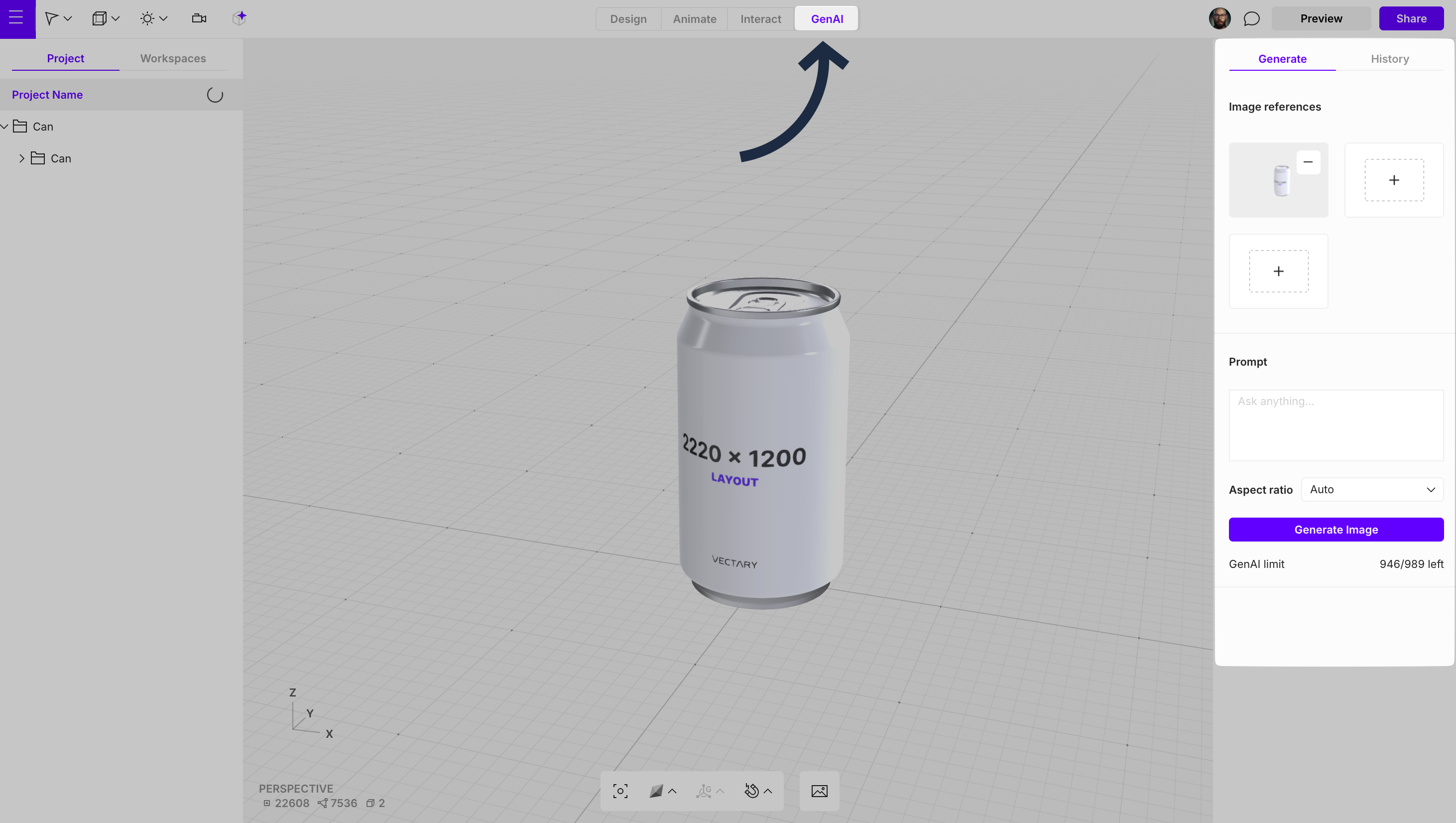
AI-based feature for generating images using a combination of 3D canvas content, optional reference images, and a text prompt.
### Overview
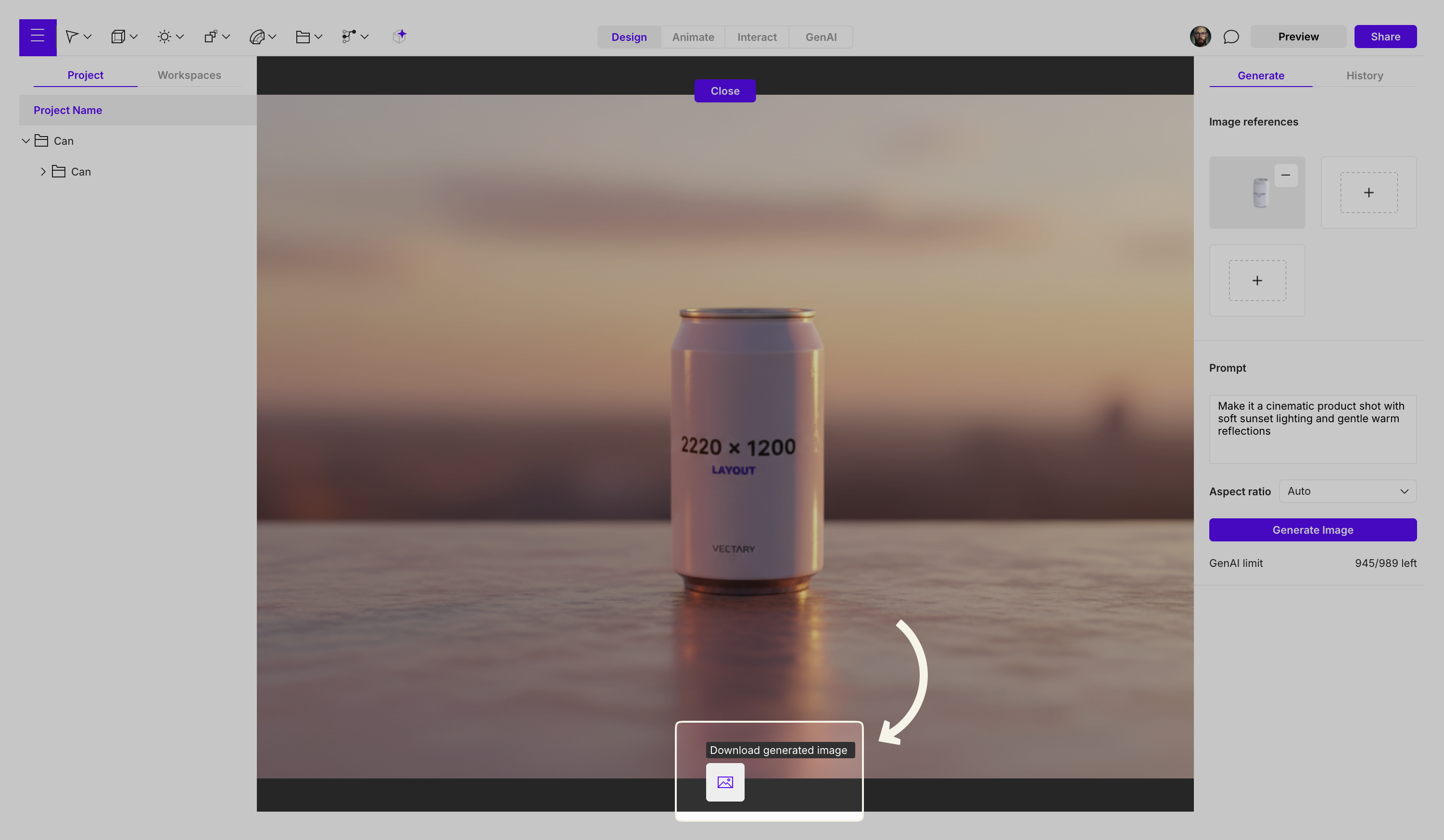
AI Image Generation provides a way to create new images based on a combination of a 3D canvas, optional image references, and a text prompt. This feature can be used to produce enhanced renders, explore visual concepts, or generate stylistic variations derived from a 3D project.
AI Image Generation uses multiple inputs:
* **3D canvas content** – a real-time reference of the current scene.
* **Optional reference images** – up to two additional images for style, material, or concept guidance.
* **Text prompt** – a description that directs the generation process.
A generated output can represent an improved render of a 3D scene or a completely new interpretation based on the provided references and prompt.
### Image References
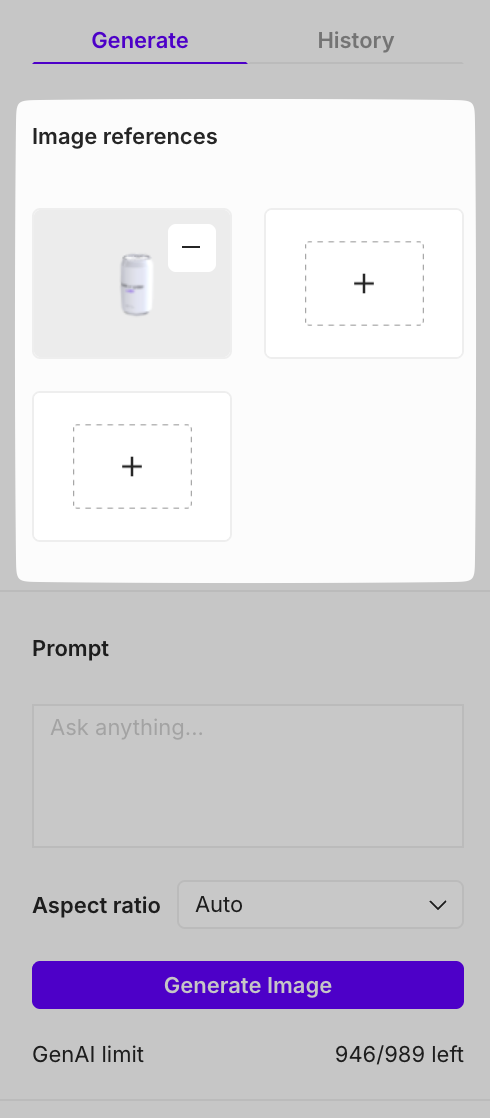
The **Image References** section contains three available slots.
* **Canvas slot** - the first slot, **Canvas**, displays the 3D canvas content in real time. Any scene updates - such as object changes or camera adjustments - are immediately reflected in this slot.\
The Canvas slot can be disabled if the 3D canvas should not be used as a reference.
* **Optional image slots** - the second and third slots are optional and accept uploaded images. These slots are useful for providing additional visual context, such as specifying a visual style, defining material qualities, or referencing design elements that should appear in the generated output.
### Aspect Ratio settings
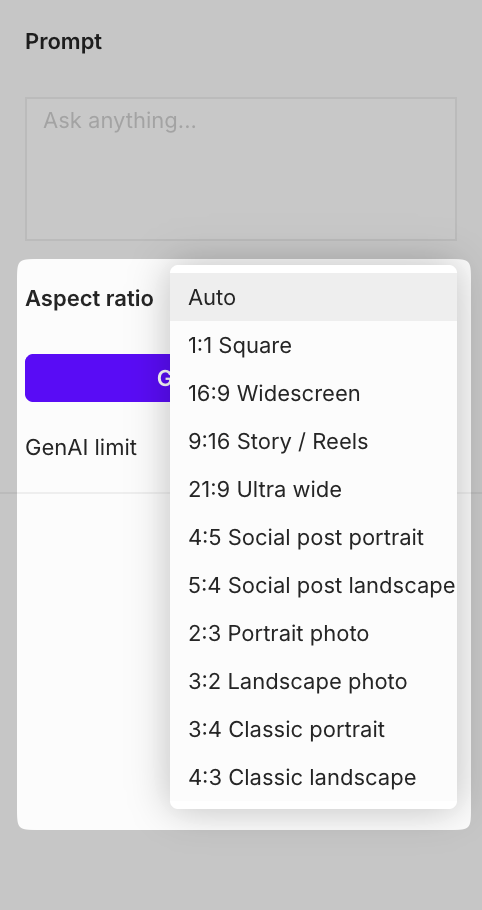
The generation settings include an option to choose an aspect ratio for the final output. An aspect ratio determines the shape of a generated image, allowing alignment with various formats such as square, widescreen, or social‑media‑optimized layouts.
### History
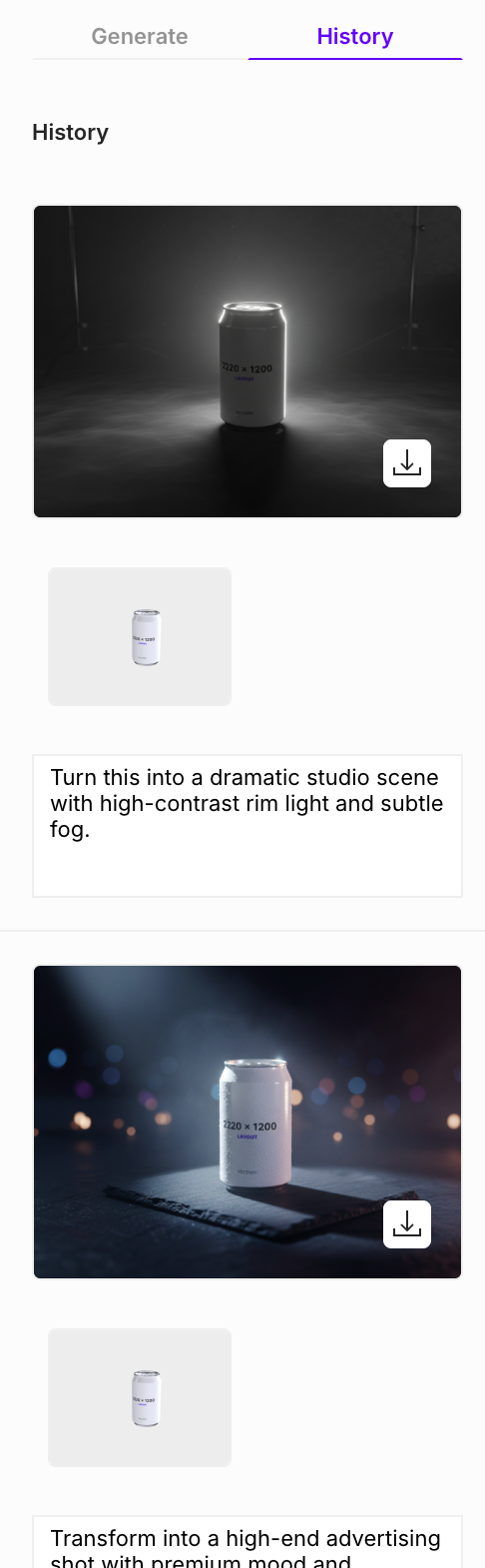
All generated outputs are automatically saved in the **History** tab, allowing convenient review and comparison of previous results.
### Downloading
After a generation is completed, the resulting output appears on the canvas. A download button below the canvas provides a way to save the generated result as an image file on a computer.
### Community
Join the [Discord community](https://discord.com/invite/kbfe4SxzMg) to access shared prompts, best practices, and examples of generated results contributed by other creators. We’d also love to see what you create, so feel free to share your own results in the dedicated channel **`✨gen-ai`**:\
\

---
# Agent Instructions
This documentation is published with GitBook. GitBook is the documentation platform designed so that both humans and AI agents can read, navigate, and reason over technical content effectively. Learn more at gitbook.com.
## Querying This Documentation
If you need additional information that is not directly available in this page, you can query the documentation by asking a question.
Perform an HTTP GET request on the following URL with the `ask` and `goal` query parameters:
```
GET https://help.vectary.com/documentation/other/3d-to-image.md?ask=&goal=
```
`ask` is the immediate question: it should be specific, self-contained, and written in natural language.
`goal` is what the user is ultimately trying to achieve, the reason they need the answer. Sharing it helps GitBook give you a better, more relevant answer. A goal is most helpful when it describes the outcome the user wants rather than restating the question. For example, with `ask=how do I create an API token`, a goal like `automate deployments from our CI pipeline` lets GitBook tailor the answer to that use case.
The response will contain a direct answer to the question and relevant excerpts and sources from the documentation.
Use this mechanism when the answer is not explicitly present in the current page, you need clarification or additional context, or you want to retrieve related documentation sections.
 Community
Join the [Discord community](https://discord.com/invite/kbfe4SxzMg) to access shared prompts, best practices, and examples of generated results contributed by other creators. We’d also love to see what you create, so feel free to share your own results in the dedicated channel **`✨gen-ai`**:\
\

---
# Agent Instructions
This documentation is published with GitBook. GitBook is the documentation platform designed so that both humans and AI agents can read, navigate, and reason over technical content effectively. Learn more at gitbook.com.
## Querying This Documentation
If you need additional information that is not directly available in this page, you can query the documentation by asking a question.
Perform an HTTP GET request on the following URL with the `ask` and `goal` query parameters:
```
GET https://help.vectary.com/documentation/other/3d-to-image.md?ask=
Community
Join the [Discord community](https://discord.com/invite/kbfe4SxzMg) to access shared prompts, best practices, and examples of generated results contributed by other creators. We’d also love to see what you create, so feel free to share your own results in the dedicated channel **`✨gen-ai`**:\
\

---
# Agent Instructions
This documentation is published with GitBook. GitBook is the documentation platform designed so that both humans and AI agents can read, navigate, and reason over technical content effectively. Learn more at gitbook.com.
## Querying This Documentation
If you need additional information that is not directly available in this page, you can query the documentation by asking a question.
Perform an HTTP GET request on the following URL with the `ask` and `goal` query parameters:
```
GET https://help.vectary.com/documentation/other/3d-to-image.md?ask=