> For the complete documentation index, see [llms.txt](https://help.vectary.com/llms.txt). Markdown versions of documentation pages are available by appending `.md` to page URLs; this page is available as [Markdown](https://help.vectary.com/api/model-api/core-concepts.md).
# Core Concepts
Essential concepts for working with the Model API. Understanding these will help you build effective integrations.
## Variants & Materials
Variants and Materials are the foundation of product configurators in Vectary. All configurator logic is built in Studio using [**Interact**](/documentation/3d-configurator/interactions.md) mode - a system that lets you create complex functionality without code. The API doesn't replace this; it provides a way to control and synchronize what you've already set up in Studio.
To work effectively with the API, you should first understand how Variants and Materials work in Studio.
### Variants
**Variants** is a container that holds multiple objects where only one is visible at a time. Think of it as a switch - when you activate one object, others in the same Variant are automatically hidden
Through API, you can read which variant is active and switch to a different one.
Variants are created in Studio using the [**Variants tool**](/documentation/3d-configurator/variants.md) in Design mode.
### Materials
Each object can have multiple **Materials** assigned to it, but only one is active at a time. Switching the active material changes the object's appearance.
Through API, you can read which material is active and switch to a different one.
[**Materials**](/documentation/design-process/materials-and-textures.md) are assigned to objects in Studio's Design mode.
## Events & Variables
[**Events**](/documentation/3d-configurator/interactions/events-for-api.md) enable two-way communication between your website and the 3D scene. They work through the Interactions system in Studio.
### How it works
Events are sent and received using [**Interactions**](/documentation/3d-configurator/interactions.md) - the logic system in Studio that combines triggers, conditions, and actions. No code is required inside Studio.
```
┌─────────────────────┐ ┌─────────────────────┐
│ │ dispatchEvent(name, v) │ │
│ Your Website │ ─────────────────────────►│ Vectary Scene │
│ │ Trigger: │ (Interactions) │
│ │ Event listener │ │
│ │ │ │
│ │ addEventListener(name) │ │
│ │ ◄─────────────────────────│ │
│ │ Action: │ │
│ │ Send event │ │
└─────────────────────┘ └─────────────────────┘
```
{% hint style="info" %}
#### **Key concept**
Event names and [**Variable**](/documentation/3d-configurator/variables-and-expressions.md) names are linked. When the scene sends an event, it sends the value of a Variable with the same name. If no such Variable exists, `undefined` is sent.
{% endhint %}
### Receiving events from the scene (Vectary → Website)
In Studio, create an Interaction with the action **Send event**. This can be triggered by any of the available [triggers](/documentation/3d-configurator/interactions/triggers.md):
* On load, On update
* On click, Mouse enter, Mouse exit
* While dragging, While hovering
You can also add optional [conditions](/documentation/3d-configurator/interactions/conditions.md) to control when the event is sent.
**Example setup in Studio:**
1. Create a Variable `product_id` with value `42`
2. Create an Interaction:
* Trigger: On click → Box
* Action: Send event → `product_id`
**In your code:**
```javascript
await api.addEventListener("product_id", (value) => {
console.log(value); // 42
});
```
If you don't create a Variable, the event still fires but value will be `undefined`.
### Sending events to the scene (Website → Vectary)
Use `dispatchEvent()` to trigger an Interaction in the scene:
```javascript
await api.dispatchEvent("width", 150);
```
**In Studio**, create an Interaction with:
* **Trigger:** Event listener → event name `width`
* **Action:** Whatever should happen (Transform, Set variable, Play animation, etc.)
The value you send updates the Variable with the same name, making it available in expressions.
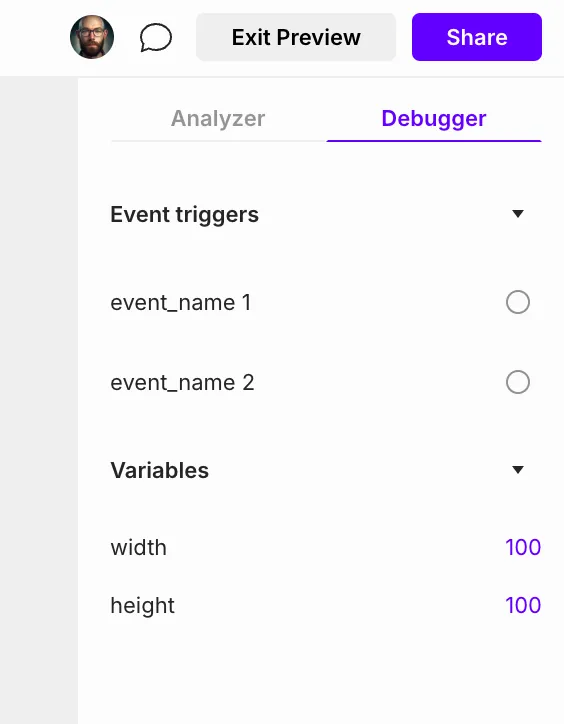
### Debugger
The **Debugger** lets you test events directly in Studio without writing code. It simulates API calls from your website.
\
**To use the Debugger:**
1. Enter Preview mode
2. Open the **Debugger** tab (appears if at least one event exists)
3. Enter a value for any event
4. Click the radio button to dispatch it
\
The Debugger also displays all Variable values and updates in real-time — useful for verifying your Interactions work correctly.
## Floating UI & Hotspots
[**Floating UI**](/documentation/3d-configurator/floating-ui.md) and [**Hotspots**](/documentation/3d-configurator/hotspots.md) are 2D elements that live inside the 3D scene. They can serve two roles in API integration:
1. **As triggers** - user interaction with these elements can send events to your website
2. **As action targets** - your website can trigger changes to these elements (show/hide, update text, etc.)
Floating UI elements overlay or dock beside the 3D canvas. They provide a no-code way to add interactivity:
* **Variants UI** - dropdown or swatch to switch variants
* **Materials UI** - dropdown or swatch to switch materials
* **Button** - triggers an action or sends an event
* **Slider** - controls a numeric variable
* **Input** - text input bound to a variable
* **Text, Image, Embed** - display content
#### How it works with API
\
All communication goes through Interactions:
**Scene → Website:** Set up an Interaction with a trigger on the UI element (e.g., On click → Button) and action **Send event**. Your code receives it via `addEventListener()`.
**Website → Scene:** Your code calls `dispatchEvent()`. An Interaction with **Event listener** trigger catches it and performs an action on the UI element (e.g., Visibility, Set variable to update text).
#### Next steps
* [**API Reference**](/api/model-api/api-reference.md) - explore all available methods
* [**Ecommerce**](/api/model-api/ecommerce.md) - see integration patterns for online stores
---
# Agent Instructions
This documentation is published with GitBook. GitBook is the documentation platform designed so that both humans and AI agents can read, navigate, and reason over technical content effectively. Learn more at gitbook.com.
## Querying This Documentation
If you need additional information that is not directly available in this page, you can query the documentation by asking a question.
Perform an HTTP GET request on the following URL with the `ask` and `goal` query parameters:
```
GET https://help.vectary.com/api/model-api/core-concepts.md?ask=&goal=
```
`ask` is the immediate question: it should be specific, self-contained, and written in natural language.
`goal` is what the user is ultimately trying to achieve, the reason they need the answer. Sharing it helps GitBook give you a better, more relevant answer. A goal is most helpful when it describes the outcome the user wants rather than restating the question. For example, with `ask=how do I create an API token`, a goal like `automate deployments from our CI pipeline` lets GitBook tailor the answer to that use case.
The response will contain a direct answer to the question and relevant excerpts and sources from the documentation.
Use this mechanism when the answer is not explicitly present in the current page, you need clarification or additional context, or you want to retrieve related documentation sections.