> For the complete documentation index, see [llms.txt](https://help.vectary.com/llms.txt). Markdown versions of documentation pages are available by appending `.md` to page URLs; this page is available as [Markdown](https://help.vectary.com/documentation/other/vectary-plugin-for-figma.md).
# Vectary Plugin for Figma
Meet the new plugin for Figma
## Overview
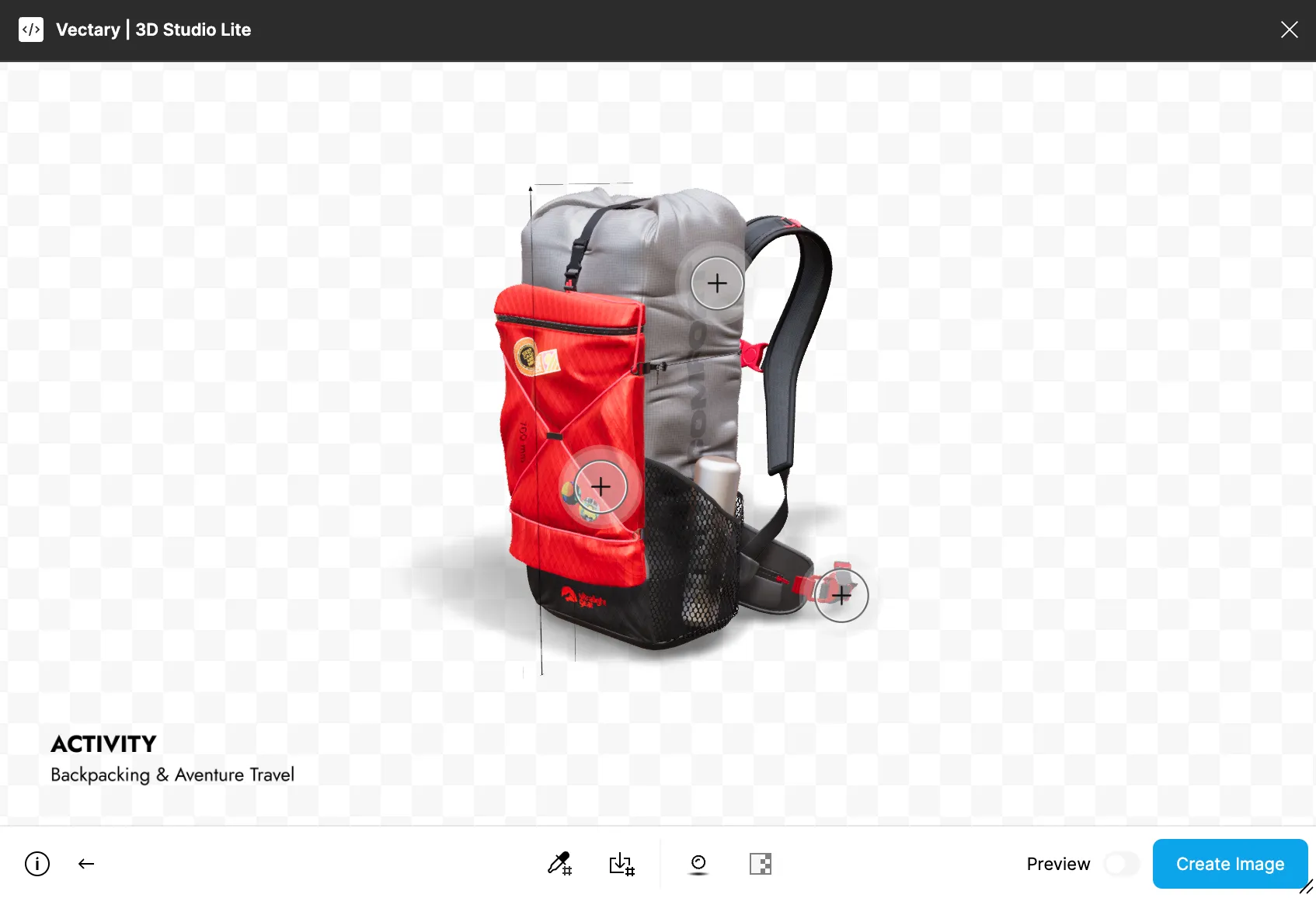
The Vectary plugin for Figma enables seamless integration of 3D projects into Figma workflows. It allows applying designs to 3D models, real-time fitting on the canvas, exporting high-quality renders, and accessing AR features directly within Figma.
#### Key Capabilities
* Apply design to a 3D project with just two clicks.
* Real-time 3D model fitting on the canvas using Preview mode
* Export rendered image to the Figma canvas
* Immediate texture reflection in AR (AR can be activated from Figma)
* Save all applied textures for use in configurators without altering the original project
* Quickly open a 3D project in Figma with interactions, animations, AR, and UI elements
* Modify existing project textures
* Change background (including transparent option)
* Add a shadow to the scene
## Getting started
\
No tokens are required. A Vectary project link is sufficient to begin.
Upon launching the plugin, a field appears for pasting a Vectary project link, along with options to load demo projects.
#### Loading a 3D Project
\
**Option 1:** use demo projects\
\
Select one of the available demos and start working immediately.
\
**Option 2:** use a custom Vectary project
1. Sign up on the [Vectary platform](https://www.vectary.com/)
2. Create a new project
3. [Share](/documentation/sharing-exporting-embedding/sharing.md) the project and copy the link
4. Paste the link into the plugin
{% hint style="success" %}
When a custom project is loaded, all configurations (interactions, animations, AR, Floating UI) will remain functional.
{% endhint %}
## Features
### Material picker
Enables applying a Figma frame to a material selected from a 3D object.
**How to use:**
1. Select the Material Picker tool
2. Use the dropper to hover over and select a material (material name appears near cursor)
3. Once selected, the material name appears next to the dropper icon
4. Click on a Figma frame to apply the selected material
{% embed url="" %}
### Get material frame from object
Exports the object's texture as a frame to the Figma canvas.
* Only the [**Color**](/documentation/design-process/materials-and-textures/basic-materials/color.md) texture is exported (Opacity, Emission, Normal maps are not included)
* If the texture was replaced using the Material Picker, the original texture will still be used for export
**How to use:**
1. Select the Get Material Frame from Object tool
2. Hover over the object to reveal the material name
3. Click to extract the texture
4. A Figma frame with the texture will appear on the canvas
{% embed url="" %}
### Ground shadow
Activates the [ground plane](/documentation/design-process/ground-plane.md), which can be further customized in the Vectary Studio.
### Background
Allows enabling/disabling the background. A transparent background is available.
{% hint style="info" %}
Note: Background color is affected by the [Adjustment effect](/documentation/design-process/effects/adjustments.md).
{% endhint %}
## Preview
Enables real-time model preview within the Figma frame.
* Preview quality is low for performance; high-quality image is generated during export
* Requires use of **Create Image** to activate
* Preview Mode is disabled automatically after creating or updating an image
* Plugin is linked to a single frame; for multiple instances, duplicate the frame
{% embed url="" %}
## Create image - Update image
* **Create Image**: Captures the current project view and creates a frame on the canvas
* **Update Image**: Refreshes an existing plugin-generated frame with current model view
## Reopen Plugin
The plugin retains memory of existing frames and associated settings.
\
**Two reopen scenarios:**
1. **Frame selected**: Plugin reopens the same project, preserving view and settings (including texture/configurator changes)
2. **No frame selected**: Plugin starts a new session and creates a new frame upon image creation
## Tutorials
{% embed url="" %}
---
# Agent Instructions
This documentation is published with GitBook. GitBook is the documentation platform designed so that both humans and AI agents can read, navigate, and reason over technical content effectively. Learn more at gitbook.com.
## Querying This Documentation
If you need additional information that is not directly available in this page, you can query the documentation by asking a question.
Perform an HTTP GET request on the following URL with the `ask` and `goal` query parameters:
```
GET https://help.vectary.com/documentation/other/vectary-plugin-for-figma.md?ask=&goal=
```
`ask` is the immediate question: it should be specific, self-contained, and written in natural language.
`goal` is what the user is ultimately trying to achieve, the reason they need the answer. Sharing it helps GitBook give you a better, more relevant answer. A goal is most helpful when it describes the outcome the user wants rather than restating the question. For example, with `ask=how do I create an API token`, a goal like `automate deployments from our CI pipeline` lets GitBook tailor the answer to that use case.
The response will contain a direct answer to the question and relevant excerpts and sources from the documentation.
Use this mechanism when the answer is not explicitly present in the current page, you need clarification or additional context, or you want to retrieve related documentation sections.